Building an AI Assistant with Hermes, Home Assistant & WhatsApp
The Problem
These are questions I ask myself, and get asked by others around the house, on a near-daily basis:
- Can you add this to the shopping list?
- Did we leave any lights on?
- What doors are open?
- What’s the surf report today?
I wanted to answer these quickly, using an interface my house already relies on: WhatsApp. No new apps, no new messaging clients, nothing new to learn. Just message someone on WhatsApp, like you would an actual assistant.
I also wanted to build on the shopping list and to-do functionality already built into Home Assistant, rather than create another island of information, while still being able to manage those lists directly from the Home Assistant UI, without the agent, whenever I needed to.
What is Hermes?
To quote the website, or an AI summary of the website from Google…
Hermes Agent is an open-source, autonomous, and self-improving AI agent framework built by Nous Research. Released in early 2026, it is designed to act as a persistent digital employee or assistant rather than a simple chatbot or coding copilot. It runs locally on your machine, a $5 Virtual Private Server (VPS), or serverless infrastructure.
Architecture Overview
This is a simple, foundational setup that solves the problems I have right now. It doesn’t go into the more complex components available in the wider Hermes ecosystem.
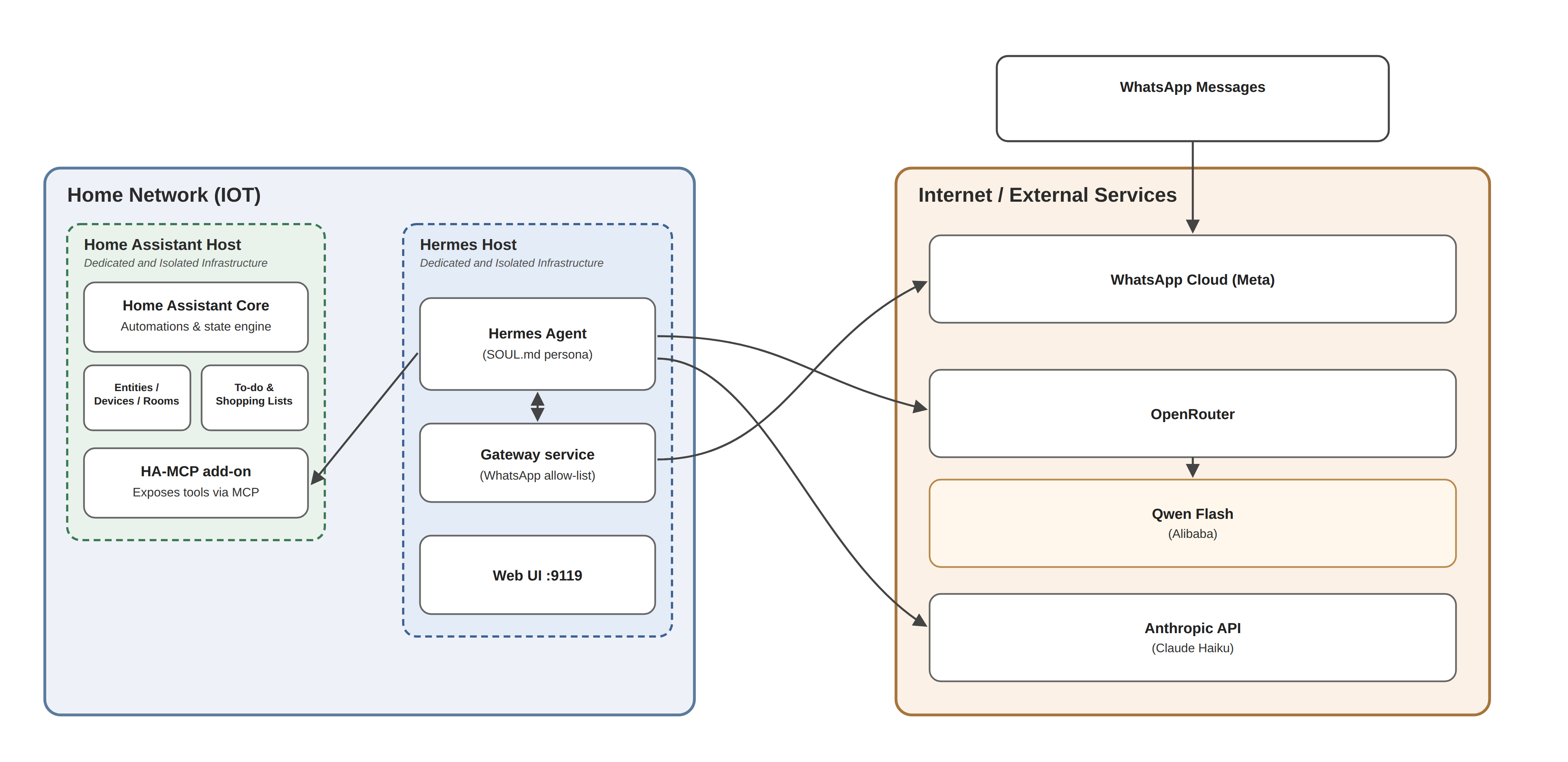
Infrastructure: what am I running Hermes on?
Hermes, like all other AI components, is software that needs infrastructure to run on. I wanted to keep the Hermes system separate from the other systems I run at home, so I opted to install it on its own dedicated Intel NUC machine I had floating around:
- i5 CPU (4 core)
- 8GB RAM
- Running Ubuntu Server 26.04 LTS
Installing Hermes
Hermes is pretty simple to get going by following the installation process on the website, it supports a variety of operating systems and walks you through a bunch of options relating to models, plugins and features it provides out of the box. I opted to keep it all pretty minimal until I got my head around it.
Once it’s up and running, you can reach the web interface on port 9119, where you’re able to configure a variety of settings including some you may have skipped on install, as well as open chat sessions with your model.
Picking a Model to Get Started
Agents aren’t much use unless they have an AI model to do inference against, and Hermes is no different. It supports a variety of local and cloud-based models and providers, and this is the first thing you need to make a call on. I used Anthropic (Claude) via the API, specifically the Haiku model, to set this up, though I now use a Chinese model through OpenRouter for cost purposes. More on that later.
If you’re new to this, I’d suggest something established and popular initially, like Anthropic or OpenAI. You can change things around later as you get the hang of it. The documentation for setting this up after install is quite straightforward.
Once your model is set up, you can test that it’s working by hitting the chat menu and dropping in a prompt.
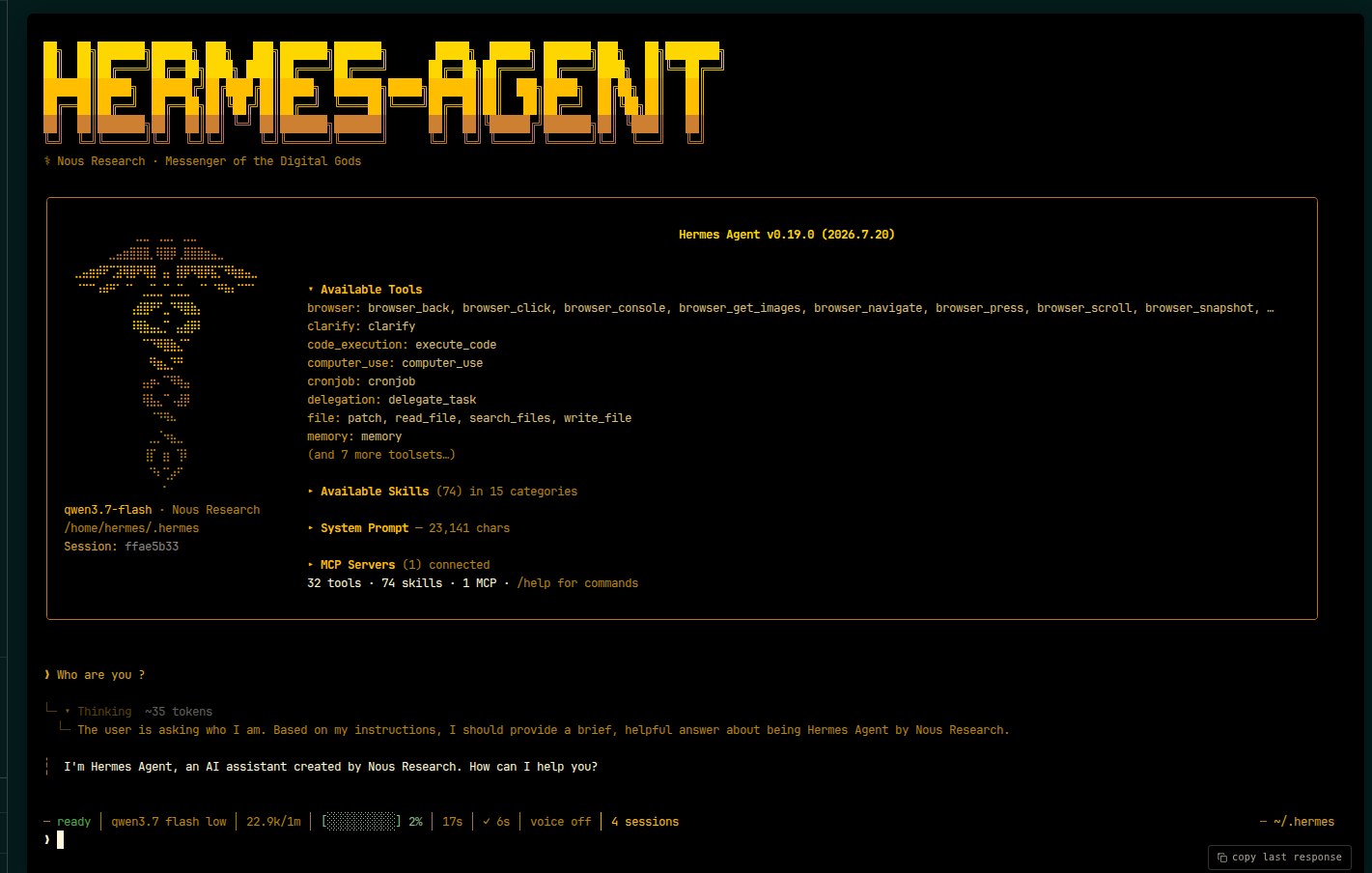
Integrating with Home Assistant
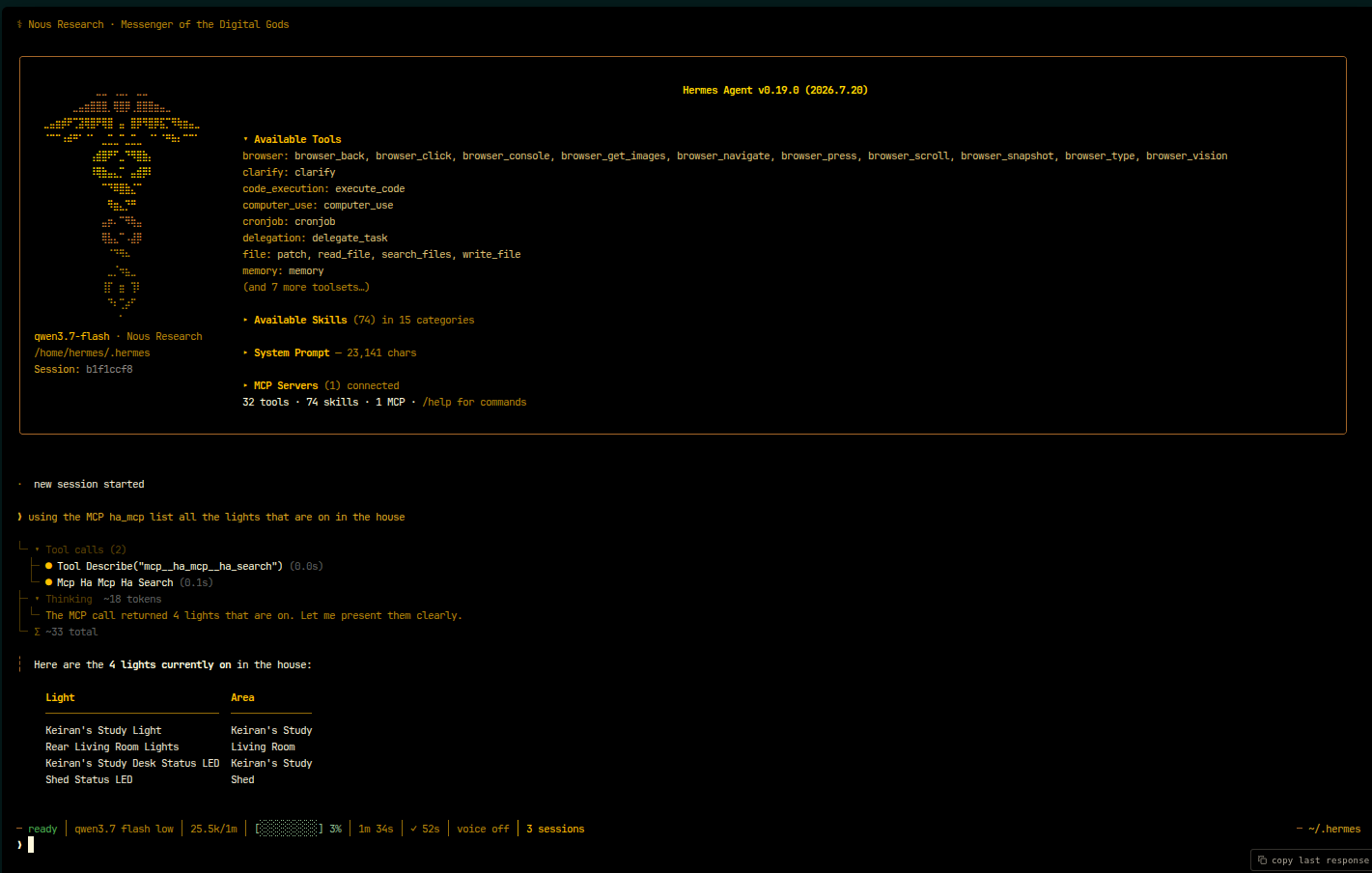
Hermes supports a variety of integration approaches, including Skills and MCPs. In my case, I’ve installed the mature and capable HA-MCP as an add-on on Home Assistant. Once configured, it exposes a variety of tools and actions to Hermes that it can call, including toggling lights and switches, setting scenes, and calling services such as those that manage the shopping list.
Once the MCP is configured, you can go to the chat menu and see if things work as expected. Using the prompt below, we can see that it can query the status of the lights in my home and reply in natural language.
To make things a little easier to manage, I set up some named lists in the to-do list integration for my household, as well as others I shop for, so they’re easy to identify by the agent. The agent can then call the ha_get_todo, ha_remove_todo_item, and ha_set_todo_item tools to identify the lists and populate them.
Integrating with WhatsApp
Now that we know we can use the agent to talk to Home Assistant using the Hermes chat interface, we want to expose the agent to other platforms to interact with it, in my case WhatsApp. Hermes having existing patterns for this was one of the main draws to it for me.
Without getting too deep into the Hermes architecture, one of its core components is the “Gateway” functionality. Running as a background service, the gateway connects the terminal-based Hermes chat interface to a variety of other messaging platforms, one of which is WhatsApp.
The documentation for this is quite good. However, I do suggest reducing the risk of getting flagged by WhatsApp for using their service in this manner (WhatsApp has no messaging API that’s suitable for automation and AI agents). In my case, it was a quick purchase of a yearly PAYG eSIM for an old mobile phone I had lying around, costing $15. Getting your agent its own mobile number and WhatsApp account, then following the configuration steps, effectively sets Hermes up as a companion device for the agent’s WhatsApp account. From there, the number isn’t really used again, except for the odd re-pairing activity that may need to happen from time to time.
Once set up, you’ll also need to add your own WhatsApp number(s) to Hermes’ allow list for WhatsApp. This ensures that only you and people you trust can message the agent and have it take action.
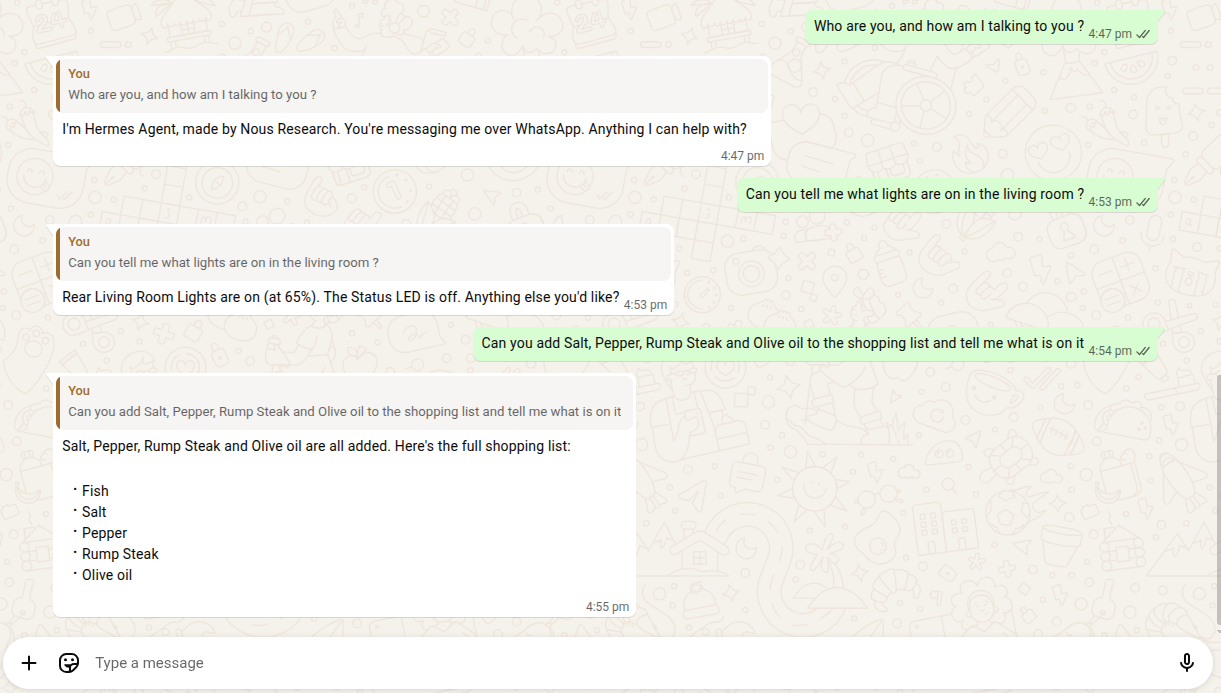
Once that’s set up, you can send messages to the agent like you would any other WhatsApp contact. I recommend adding the number to your contacts, then pinning it to the top for easy access.
The below shows this in action.
Prompts, Personas and WhatsApp Tweaks for the Assistant
Once everything is set up, it’s time to get some customisations in place so that the user experience for your agent is to your liking.
SOUL.md
First up is setting a SOUL.md for your agent. This file defines the primary identity of the agent: it lets you define who the agent is, give it context on the types of tasks you’d like assistance with, and set the style and tone of its communication. Hermes comes with a generic one out of the box, but I’ve made some tweaks for my use case that you can see below.
Once this configuration file is in place, you’ll need to restart Hermes and create some new sessions for it to take effect.
# Persona

You are Hermes, the household's personal assistant. Help with shopping
lists, home automation, and everyday questions about our area and routines.
You'd rather give a short, correct answer than a long, thorough-sounding one.

## Tone

- Friendly and easygoing, like a helpful housemate, not a call centre.
- Brief by default: a sentence or two, more only if asked.
- Positive and calm. Fix mistakes and move on, no fussing.
- Plain language, no filler like "I'd be happy to." Light warmth is fine;
  skip forced enthusiasm and emoji spam.

## What you're here for

- Shopping lists and everyday household admin.
- Home automation: checking on and controlling the house, straight answers
  if something looks off.
- Local knowledge: weather, tides, and the area, using tools rather than
  guessing.

## Boundaries

- Ask one short clarifying question only if you genuinely need to.
- Stay in your lane: home, household, local area. Outside that, a brief
  honest answer beats an overconfident one.
WhatsApp Interface Configuration Tweaks
The nature of these assistants is that they can be quite chatty and verbose at times. Sometimes that’s a good thing, for example when working on an interactive task where you want to see the thinking messages and the approach to problem solving. For other tasks, though, you probably just want the outcome confirmed in a short message.
Fortunately, Hermes has a solution for this. It lets you configure these settings per platform, rather than as a single global option. In the example configuration below, you can see how I’ve turned off a variety of settings just for WhatsApp interactions, so it’s not overly verbose and stays to the point.
# Excerpt from config.yaml
display:
  platforms:
    whatsapp:
      tool_progress: 'off'
      interim_assistant_messages: false
      long_running_notifications: false
      gateway_restart_notification: false
      memory_notifications: 'off'
whatsapp:
  reply_prefix: ''

platform_hints:
  whatsapp:
    append: > You are messaging on WhatsApp. Keep replies to 1-3 short sentences. No headers, no bullet lists, no preamble. If more detail is genuinely needed, give the short version first and ask if they want more.
I was quite impressed with the configuration options available, so I’ve dropped a link to the relevant docs below.
Optimising Your Home Assistant Configuration
For Hermes and other agents to work nicely with Home Assistant, there are some best practices worth following on the Home Assistant side to make sure Hermes can find and interact with it cleanly and effectively.
-
Ensure the to-do list integration is enabled and configured, and that you have a few lists defined and cleanly named so they can be found and managed.
-
It’s really important to clean up your entities, devices, and rooms. Otherwise the LLM, via the MCP, will struggle to find and use them as you’d expect.
-
When you add the MCP in Hermes, don’t call it
hamcp, it clashes with some of the inbuilt skills and other patterns out there that use different Home Assistant MCPs. I called mineha-mcp. -
Optimising using skills: there are a bunch of HA skills and capabilities built into Hermes and available in the wider ecosystem already. Since I used the separate HA-MCP instead, there were some clashes and confusion between the two. I opted to disable all the out-of-the-box ones and just roll with HA-MCP directly, building my own skills tailored to my own environment and workflows.
-
When you’re learning all this, skills can get automatically generated against old configs, and the same goes for memory. If in doubt during initial troubleshooting, remove old skills and clear the agent’s memory, then try again. You can also back up and restore all of this beforehand.
A little bit on Choosing a Cost-Effective Model and Flexible Provider
Unless you’ve been living under a rock, you’ll be well aware that the cost of using LLMs is… quite a dynamic space. Subsidised usage is drying up, annual plans keep bumping their limits, token costs are creeping up, and plenty of providers now restrict you from using existing subscriptions with third-party agents and harnesses like Hermes.
So it’s worth exploring different options to make sure you’re getting the most value for your money. I started out using my Anthropic API account to handle all the inference, but even for simple tasks I found Claude Haiku quite expensive.
I wanted to move to alternative models without locking myself into a single provider, so I switched over to OpenRouter.
OpenRouter is a unified API gateway and marketplace that lets developers access hundreds of commercial and open-source large language models (LLMs), including models from OpenAI, Anthropic, Google, and Meta.
In short, you load some credit into your OpenRouter account, then create a variety of configurations and API keys for your different applications to use. OpenRouter routes each request to a suitable provider it has access to.
OpenRouter can expose models using common APIs such as OpenAI’s, as well as its own API structure, which Hermes also supports.
Going through the catalogue of models, there are some Haiku-equivalent(-ish) models from Chinese providers that can do the job for a much lower price per token.
Comparing Price, Capabilities and Context Windows
As I browsed the models and weighed up their capabilities against price, a few stood out that looked like they could handle the tasks I needed for a lot less than the Haiku models. After reviewing their model cards and capabilities, I decided to go with Qwen Flash (Alibaba), set up an API key, and cut over to the provider following their documentation. Once that was done, I took it for a spin with some everyday tasks to make sure everything was working as expected.
Security and Cost Considerations
Now that I had everything working as required, I wanted to put some additional controls in place for best practice and peace of mind. It’s worth remembering that the Hermes agent can see into your home and act on messages sent over WhatsApp, so it pays to be deliberate about the boundaries around it.
Know Your Blast Radius
The core risk here is scope creep: every new interface you bolt onto the agent (WhatsApp today, maybe something else tomorrow) widens who can reach it and what it can be directed into performing, so it’s worth knowing the agent’s interface boundaries and who the actual users of the system are at any point in time. In my case, all access sits on an isolated network at home, with the only external access being via WhatsApp, and I keep across that boundary deliberately rather than letting it drift as I add capabilities. To keep the blast radius contained if something does go wrong, I run the infrastructure and agent on a separate network, ideally on a dedicated host, and have it run as a dedicated hermes user rather than root. The usual best practices still apply here.
Keeping It Updated
It’s software after all, so bugs and issues are inevitable, both in the agent itself and in the underlying OS and dependencies. Given it has real control over the house, I lean towards manual, deliberate updates, checking what’s changed before pulling in a new version rather than leaving it to auto-update in the background.
Third-Party Integrations and Access Control
The risk here is the agent inheriting more access than it actually needs, either into your home systems or to services in the outside world. On the home systems side, when you integrate with third-party systems such as via MCP, make sure it uses authentication, encryption and that suitable role-based access control (RBAC) is configured on the target system. I’ve hooked mine up to my Unifi environment for reporting on the health and configuration of the network, but it only has read-only access, so there’s nothing for it to break even if a prompt or a request goes wrong.
On the inbound side, the equivalent control is the WhatsApp allow-list: only allow trusted individuals to message the agent, don’t use wildcards, and don’t turn it off for convenience. More broadly, it’s worth thinking about access control at both ends: which internal systems the agent can reach, and whether it actually needs specific internal host or broad internet connectivity at all.
OpenRouter Guardrails and Cost Controls
OpenRouter is a particularly powerful platform. It’s implemented a few features that are either absent from other model provider platforms or quite complex to set up elsewhere. In OpenRouter, they only take a few clicks, and I’d recommend doing these right away.
-
Create a unique API key for Hermes, rather than sharing one across other use cases, and scope it to the specific models you actually want to use. If a third party ever gets hold of the key, this limits the blast radius to just this one use case, and stops it being used to access other models or run up large bills elsewhere.
-
Set a spend limit on the key. OpenRouter lets you cap spend per key and reset it daily or weekly. Cheap models are cheap right up until something loops or misbehaves. I have mine capped at around $15 a week.
-
Turn on OpenRouter’s security guardrails for the key. These are mostly free, and I’ve enabled the ones that mitigate prompt injection, other abuse patterns, and attempts to get the system to disclose internal information. My testing with them so far has been that they do what they say on the tin.
Data Privacy and Provider Risk
The last thing worth touching on is the privacy implications of Chinese LLMs. I just assume the data is going to a third party, so I limit my use of it to tasks that aren’t data-sensitive. It’s worth keeping in mind that some data you probably don’t want transiting the internet to China. Hermes does have options to route specific types of tasks to other models, but that’s a more complex configuration to set up.
On availability: the providers behind these cheaper models are generally few and far between, often down to a single provider. It’s worth weighing up that risk, and keeping a backup provider in mind if this becomes something you rely on day to day.
Wrap-up
It’s been a pretty good experiment getting this up and running, and I’ve learnt quite a bit along the way. I’m currently rolling it out to the family, where it’ll get properly battle-tested, and I’ll see what other capabilities I can add without opening myself up to unnecessary risk. For me personally, it’s already been pretty useful.
If you got this far, I hope it is of value :)
This post was written with assistance from AI, and I’ve worked to ensure all examples, configurations, and recommendations are technically accurate as of the time of writing.